The Simple Backup Plan That Saves Your Photos
Phones get lost and drives fail. Keep three copies of what matters, in two places, with one far from home.
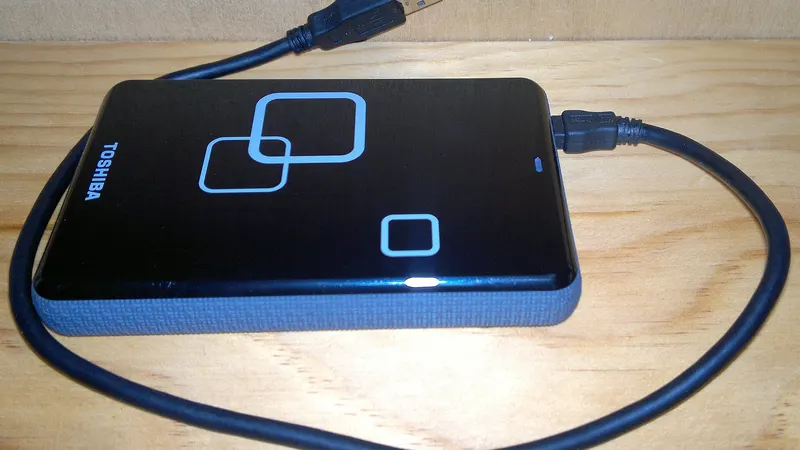
Most people only think about backups after they lose something. A dropped phone, a spilled drink or a failed laptop can wipe out years of photos in a second. The fix takes about an hour to set up.
The 3-2-1 Rule
Keep three copies of anything you care about. Store them on two kinds of storage, such as a cloud service and a hard drive. Keep one copy away from your home.
That sounds like a lot, but most people already have one copy on their phone. A cloud backup makes two, and an external drive makes three.
Step One: Cloud Backup for Your Phone
On an iPhone, turn on iCloud Photos in Settings under your name. On Android, open Google Photos and turn on Backup. Both offer some free space, and more costs a few dollars a month.
Check the backup is actually working. Open the app and look for a message that says your photos are backed up.
Step Two: One External Drive
A portable drive costs less than a nice dinner out. Once a month, plug it in and copy your photos and documents. Mac users can let Time Machine do it. Windows users can use File History.
When the copy finishes, unplug the drive and put it away. A drive that stays plugged in can fail at the same time as your computer.
Step Three: Check It Works
A backup you have never opened is only a hope. Every few months, open a few old photos from your drive and from the cloud. If they open, you are covered.
Questions Readers Ask
Is cloud backup enough by itself?
It covers most people most of the time. But accounts can get locked, and syncing can copy a mistake everywhere. A second copy on a drive you hold gives you a safety net.
How big a drive do I need?
Check how much space your photos and files use now, then buy a drive at least twice that size. That leaves room to grow.
What about ransomware?
Unplug your external drive after each backup. A drive that is not connected cannot be locked by malware on your computer.